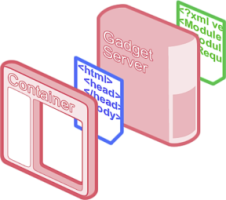
What is Shindig?
Shindig is a new project in the Apache Software Foundation incubator and is an open source implementation of the OpenSocial specification and gadgets specification.
The architectural components of Shindig can be broken down as follows:
- Gadget Container JavaScript -- core JavaScript foundation for general gadget functionality. This JavaScript manages security,
communication, UI layout, and feature extensions, such as the OpenSocial API.
- Gadget Server -- an open source version of Google's gmodules.com, which is used to render the gadget XML into JavaScript and HTML for
the container to expose via the container JavaScript.
- OpenSocial Container JavaScript -- JavaScript environment that sits on top of the Gadget Container JavaScript and provides OpenSocial
specific functionality (profiles, friends, activities, datastore).
- OpenSocial Data Server -- an implementation of the server interface to container-specific
information, including the OpenSocial REST APIs, with clear extension points so others can connect it to their own backends.
Downloading periodic builds of Shindig
We currently do not have an automated builds infrastructure set up to
offer periodic builds yet, but hope to have it available soon. Check
back here in the near future for downloadable builds of Shindig.
In the meantime, please visit the Building Shindig tab for instructions on using the code in the repository.
Building and running Shindig
The following steps provide useful information on how to build and run Shindig.
In order to build Shindig, you must have the following:
- Java (JDK/JRE) 1.5 or later installed on your system and the JAVA_HOME environment variable set.
- A Subversion client installed in order to checkout the code.
- Instructions for downloading and installing Subversion can be found here: http://subversion.tigris.org/
- Apache Maven installed to perform the build.
Create a subdirectory and checkout the Shindig code from its Subversion repository
-
mkdir ~/src/shindig (or wherever you'd like to put it)
-
cd ~/src/shindig
-
svn co http://svn.apache.org/repos/asf/incubator/shindig/trunk/ .
To build a Web Archive (WAR) file for the Gadget server and run tests, perform the following:
- Make sure you have the prerequisites installed first.
-
cd ~/src/shindig/java/
-
mvn package
-
Once the build successfully completes, you can install the built WAR
files located in the /target subdirectory onto your JEE
server.
To run the code and start a Jetty server that will run on at localhost:8080:
cd server
mvn jetty:run-war
To run the Jetty server on a different port, use:
mvn -Djetty.port=<port> jetty:run
Once you've either installed the WAR file on your JEE server, or are
running locally using the Jetty server, you can test the Gadget server
using:
- http://localhost:<port>/gadgets/ifr?url=http://www.labpixies.com/campaigns/todo/todo.xml
These steps, after completing the previous section, will allow you to
build from within Eclipse using the Maven2 plugin. You should first
install the Maven plugin, then create the new Java project.
- Create
~/.m2/settings.xml consisting solely of
<settings>
</settings>
- Install the Maven2 plugin
- Help -> Software Updates -> Find and Install
- Search for new features to install
- Create a new remote update site for the Maven 2 plugin
- Name: Maven2 - Sonatype
- URL:
http://m2eclipse.sonatype.org/update/
- Select the site and click "Finish"
- There are optional dependencies on mylyn and subclipse. If you don't have these plugins, you can get them here. Otherwise, select only the Maven Integration plug-in.
- Complete the installation
- Setup new workspace and project
Creating a new workspace eliminates the performance cost from existing projects and makes it easier to manage the code.
- File -> Switch Workspace -> Other...
- Select directory to store workspace
- Do not select a parent directory of the shindig source (e.g.
~/src/shindig) as Eclipse won't allow you to create the Java project.
- Something like
~/eclipse/workspaces/shindig would work fine
- File -> New -> Java Project
- Select 'Create project from existing source' and navigate to:
~/src/shindig/java
- Click Finish
- If you see a dialog for "Open Associated Perspective", click Ok.
Don't worry about the errors after loading as they will be fixed in the next step.
- Right-click the project, select
Maven : Enable Dependency Management
- Right-click the project, select
Maven : Update Source Folders
- Optionally, if you would like to be able to browse or step into the code of your dependent
jars when debugging, you need the source jars. Right-click the project, select
Maven : Download Sources and Eclipse will automatically know about
these sources when debugging. You can browse them under Maven Dependencies in your project.
To debug the server in Eclipse, follow the last two steps here (takes a few
minutes to set up):
- "Using eclipse external tools"
- "Attaching to the server running in debug mode, using eclipse"
Note: You must have set up Eclipse to build the code or do mvn package yourself after making changes, but you won't need to
restart Jetty to see your changes.
Caja is an
important part of OpenSocial that greatly enhances JavaScript security.
Caja is managed in a separate open source project hosted by Google code
projects. For more information on Caja, see: http://code.google.com/p/google-caja/wiki/CajaEasyIntro
- Load this page: http://localhost:8080/gadgets/files/samplecontainer/samplecontainer.html
- Point it to this gadget: http://localhost:8080/gadgets/files/samplecontainer/examples/SocialHelloWorld.xml
To see the cajoled code (Firefox only), right-click inside the iframe and do "This Frame -> View Frame Source"
Read
java/README for original instructions on how to start up any of the java shindig servers.
Read php/README for original instructions on how to start up the php shindig server.
Read javascript/README for instructions for using the
Shindig Gadget
Container JavaScript to enable your page to render Gadgets using
gmodules.com or a server started up as described above.
How to contribute to Shindig
Shindig is strengthened by accepting quality contributions from a wide
variety of sources. These steps serve as an in-progress guide to
contributing code into the source code repository for Shindig.
For new people to the project, creating patches is the way to get started and build your reputation.
- Start editing the code, since Subversion is being used no checkout is needed
- Move to top level folder, e.g.
cd ~/src/shindig
- Generate diffs using
svn di > fix-xxx-bug.patch
- If needed, remove from the patch file any changes you do not want to submit until later
- If you're new, create an account on https://issues.apache.org/jira/browse/SHINDIG
- Create a new issue with the patch:
- Follow the "New" link: https://issues.apache.org/jira/secure/CreateIssue!default.jspa
- For the "Issue Type", select "Bug", "Improvement" or "New Feature"
- Click "Next>>"
- Enter summary / description and select the component
- Click "Create"
- Click "Attach file" and select the
mychanges.patch file
- Check the "Grant license to ASF for inclusion in ASF works" option
- Click on "Watching" and then click on "Start" watching to get updates
The newly created issue will automatically be sent to shindig-dev@incubator.apache.org. You
should also subscribe using shindig-dev-subscribe@incubator.apache.org to see all
the feedback, in which case you'll get the updates on the issue without needing to "Watch" them individually.
If you have commit permission, then you can submit directly from
subversion and should also look at patches provided by others.
- Move to top level folder, e.g.
cd ~/src/shindig (you might find it helpful to create a separate tree from your working
tree)
- Apply patch:
patch p0 < mychanges.patch
-
svn commit
- For the log message put
Applied patch for JIRA issue SHINDIG-XXX,
where XXX is the JIRA issue number you are applying the patch for. This
will automatically update the JIRA issue with a link to the subversion
commit. You don't need additional comments as the JIRA issue should
contain enough information already.
To file bugs or feature requests, please use Shindig's issue
tracker (JIRA):
- Login to the issue tracker (top right corner) or follow the instructions to make a new account (anyone can make an account).
- Once logged in you should be able to see all of Shindig's open issues.
- If the issue has not been filed, use the "Create a new issue" link (this will not be shown if you are not logged in).